MIDI Basics
What it is, how it works, why it's important
and how to hook it up in your
home studio
by Rich the TweakMeister
|
MIDI 101 1. Understand MIDI data 2. How to setup a keyboard and sequencer 3. Configuring Ports, Channels, Tracks and Instruments |
Ok, professional mixologists, filter-heads, LFO-freakoids, Vintage synth-masters, and advanced sample rippers please click here to go back to the end of the article, where I will let you back in. And don't smirk at these new dudes on the way out! This article is for the newbie who wants to get going using MIDI and audio and making their own music. This is the most basic of the basics. Its for the person who knows nothing at all about MIDI and audio technology but wants to learn really fast and learn everything you need to know for success.
So I should only have Newbies here now. Cool. Don't worry about all those "pro" elitists, they were here once themselves (and probably not long ago). Lucky for you, the Tweak is your teacher. Pay attention 'cause there is a test at the end. Let the TweakMeister get you up to speed in 10 minutes. In this article we talk about MIDI, then next we'll get into AUDIO and after that we'll ties them together and discuss the Basic Recording Studio.
Let me
say it now. Those that succeed as home electronic musicians understand
MIDI. You can try to get by without it, but it will dog you at every
turn. Don't think the MIDI is only something that keyboard players need to
know. Today, MIDI controller data is used to automate a variety of studio
gear, including the hardware and software mixing consoles we use. Read the
next paragraphs several times, slowly.
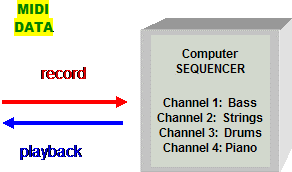
MIDI is made of Controller and Note DATA, not Audio.
 MIDI,
the Musical Instrument Digital Interface is a protocol
developed in 1983 by major synthesizer manufacturers to allow one synth to play
another remotely. They tried to figure out a way they could make a second synthesizer
play by sending it control data from the first. They figured it out, and more!
The developers quickly found out a computer could record and playback 16
channels of this data and it revolutionized the way music is produced. Then they
discovered with the right hardware you can have several of these 16 channel bundles
(or ports) all running at once. The implications were profound.
Now one person could compose multi-part music all by themselves.
MIDI,
the Musical Instrument Digital Interface is a protocol
developed in 1983 by major synthesizer manufacturers to allow one synth to play
another remotely. They tried to figure out a way they could make a second synthesizer
play by sending it control data from the first. They figured it out, and more!
The developers quickly found out a computer could record and playback 16
channels of this data and it revolutionized the way music is produced. Then they
discovered with the right hardware you can have several of these 16 channel bundles
(or ports) all running at once. The implications were profound.
Now one person could compose multi-part music all by themselves.
|
IMPORTANT: MIDI works by sending NOTE ON and NOTE OFF events down a midi cable as well as timing information and controller (knobs, wheels, and sliders) information. Read that again, OK? MIDI works by sending NOTE ON and NOTE OFF events down a midi cable as well as timing information and controller (knobs, wheels, and sliders) information. MIDI does not send sound, or audio down the MIDI cable. |
|
---->Understand that MIDI is NOT an audio signal<----- |
The sound (or audio waveform) of the keyboard or module does not go down the MIDI cable, only these computer encoded "events" do. What is an "event?" It's all just numbers, man. But not the large blocks of numbers that make up an audio waveform. MIDI events are just ones and zeros that say when you pressed down which key (a note ON event), how hard you pressed it (velocity number), when you let the key up (a note OFF event), pressed the next key, moved a knob (controller data), changed a program (program change command). That is the basic point you have to fully understand. The cool thing is that all this MIDI data, once recorded, is fully, totally, completely editable, malleable, changeable, transformable, re-assignable, erasable, replaceable and it all happens on the edit screens of your sequencer.
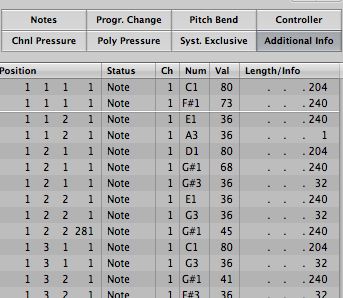 |
This is MIDI DataNotice that in this screen "position" is the time stamp, "num" is the midi note on command, "val" is the velocity value and length/info is the length in ticks. 240 has the duration of an eighth note |
How MIDI Works
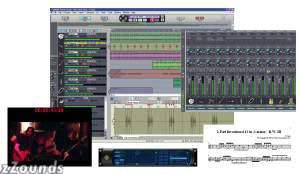 MIDI
Sequencers (i.e., Sonar, Logic, Cubase) work by recording
these NOTE ON/OFF events along a timing grid that can be played back at any tempo.
When you press Play on a sequencer, it simply sends the data back to the synth,
which turns on the notes and plays it just like a player piano. Get it? Because
the Synth receives the exact same events that it sent when you played
the track, it sounds exactly the same. If it doesn't sound like you want
you can edit it on the screen. That is how MIDI data is converted to sound.
Once the synth is playing back a midi track, now you can record that track as an
audio track, assuming you have a hardware MIDI synth, by connecting the analog
outputs of the synth to the soundcard line inputs and pressing record.
Now you have an audio track. Makes sense so far? Cool.
If not, read that paragraph again. It's critical.
MIDI
Sequencers (i.e., Sonar, Logic, Cubase) work by recording
these NOTE ON/OFF events along a timing grid that can be played back at any tempo.
When you press Play on a sequencer, it simply sends the data back to the synth,
which turns on the notes and plays it just like a player piano. Get it? Because
the Synth receives the exact same events that it sent when you played
the track, it sounds exactly the same. If it doesn't sound like you want
you can edit it on the screen. That is how MIDI data is converted to sound.
Once the synth is playing back a midi track, now you can record that track as an
audio track, assuming you have a hardware MIDI synth, by connecting the analog
outputs of the synth to the soundcard line inputs and pressing record.
Now you have an audio track. Makes sense so far? Cool.
If not, read that paragraph again. It's critical.
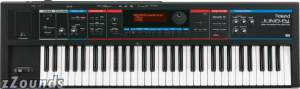
MIDI devices
(i.e., keyboards, hardware sound modules and control surfaces) typically have 16 channels they can send and receive on. Much like your TV, you can have a different program on each channel. The only difference is that MIDI can play all 16 channels at the same time. These channels correspond to tracks in your sequencer. On each track, you can assign a different instrument. A typical starter MIDI keyboard may have hundreds of instruments to choose from. You record each track while the previous tracks play back. Because MIDI has 16 channels, you can have 16 instruments playing together, like a 16 piece band, if you want, that is totally of your own design.Core Concept: MIDI data can be recorded as sequences of notes onto different tracks which correspond to channels
|

MIDI IN, Out and Thru (Standard MIDI jacks)
Why is MIDI confusing? Because the terms change depending on your vantage
point. From the vantage point of the computer, the MIDI out goes "to" a device,
like a keyboard. The MIDI in comes "from" a device, like a keyboard or drum
controller.
From the standpoint of the keyboard, the MIDI
out goes to a computer or another device.
When you play notes on the keyboard, data goes out the MIDI out
of the keyboard. It does not go through the MIDI Thru.
| Keyboard MIDI OUT-------->Computer MIDI
IN Computer MIDI OUT-------->Keyboard MIDI IN Keyboard MIDI Thru------->exact copy of the data coming in the keyboard MIDI in |
The Computer MIDI out passes through the Keyboard's
MIDI IN and then to the Thru. The data coming
out the keyboard MIDI thru jack is exactly the same as that which arrived at the
MIDI in from the computer. However, and here it gets tricky, the data going
out the MIDI out of the keyboard does NOT go through the MIDI thru.
Only data coming into the keyboard goes out the thru. Got
it? If you understand that simple point you will be ahead of most people.
Whew!
USB MIDI
USB MIDI i/o is simpler to deal with from a conceptual point of view. Data flows in both directions down a single cable. There is no "MIDI Thru" is USB, so you cannot daisy chain.
MIDI PORTS: How we get MIDI data into and out of the computer
There are
16 channels for every hardware MIDI IN and OUT PORT (MIDI i/o) on your computer.
Your computer's audio interface may have MIDI i/o, and if not you can buy a MIDI interface to add MIDI
i/o. First lets look at all the ways you can get MIDI data to your computer.
Going IN to the Recording Software: 5 ways
MIDI IN Ports:
There are 5 basic ways
to bring MIDI data into a computer. You need to have at least one of them
to connect a keyboard or controller.
1. Some keyboards (not all!) come with built-in USB MIDI interfaces. For these you just connect the USB cable to the computer and install a driver (if required). The port will show up in your software.
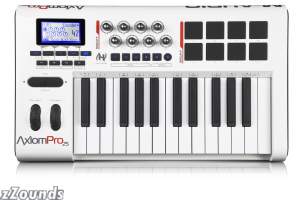
Example of a keyboard controller with USB MIDI. You don't need a MIDI interface if you connect via USB. See more controllers
2. Many soundcards and audio interfaces may have a built-in MIDI interface. The M-Audio 2496, Delta 1010, Emu 1820M, MOTU 828mk2, Tascam FW1884 (and FW 1082) are examples of devices that have built-in MIDI ports. Here you connect your gear to the standard MIDI jacks on the interface.
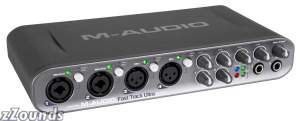
The M-Audio Fast Track Ultra USB 2.0 Audio Interface is a USB 2.0 audio interface that has a MIDI in and out port on the back. See my chart that shows which audio interfaces offer MIDI ports
3. In this case that you don't have a built-in hardware
MIDI interface on your soundcard or a USB MIDI interface on your keyboard (or controller),
you have to purchase a separate MIDI Interface. They are not expensive
and are generally more reliable than joystick ports. Usually the interface connects
by USB to the computer and you connect your MIDI hardware via the standard MIDI
jacks on the interface.
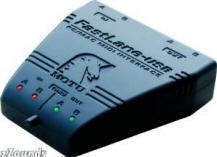
Example of a separate USB MIDI interface. See more USB MIDI Interfaces
4. Various MIDI Cable Conversion Interfaces. There are conversion cables that, along with device drivers, can turn various connectors on PCs to MIDI ports. There are basically 2 types. 1. The Joystick port to MIDI cable (These are primarily for soundblaster soundcards), 2. The serial port to MIDI cable. These cable devices are typically only as reliable as the drivers. You want to make sure they are compatible with your operating system. While these are often inexpensive they may have an issue with your system. If you have to go cheap, go with a USB to MIDI cable like an Emu X-MIDI or M-audio MIDI sport UNO
5. There are a lot of older rack midi interfaces. There are bound to be many on ebay and in the pawn shops. With these you must be very careful, especially if they were designed for Windows 95, 98 and for older DOS based computers. These typically connect by serial or parallel ports. Steer clear. Without a functioning driver, these midi interfaces will not work.
If you have a number of midi input devices like keyboards, drum machines, controllers and control surfaces they each need a way to connect to the computer. You can have a USB keyboard, a drum machine connected through a MIDI port and a control surface connected by a 2nd midi port and all 3 will input data simultaneously to the track you are recording. Methods can be mixed an matched. You computer will see and use all MIDI inputs connected, whether they are on your soundcard or interface, are connected through your USB hub, or are coming from a separate MIDI interface.
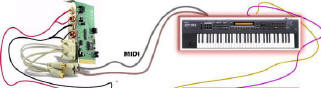
To send control events, (i.e., "notes") to your sequencer any keyboard with a MIDI out will work, even if it sounds like crap. Remember, you only need it to trigger the NOTE ON NOTE OFF event to the sequencer, which will send them to your available synths, which will send the sound to the speakers. Get it? Though the playing happened at the keyboard, the sound can be triggered at any MIDI sound source, whether they exist in hardware or software. You can even use an old CASIO with the speakers ripped out as long as it has a MIDI out.
To Review: External MIDI IN ports bring MIDI data from outside to inside the computer, where it can be recorded, and sent back out the MIDI OUT port to the external device upon playback.
Going OUT of the Recording Software to hardware and software synths
Now lets look at how MIDI data leaves the sequencer
application in the computer and goes to different devices that make sound, both
inside and outside the computer.
External Ports: The recorded
data goes out of the sequencer to the MIDI out port which is connected to the
MIDI in port on your hardware instruments. The obvious example here is the computer
that sends MIDI data back to a hardware synthesizer. The instrument receives
the data and plays the sound.
Virtual Ports:
Internal MIDI ports direct data to sound sources inside your computer.
Your sequencer can create a virtual MIDI OUT port for every software
synthesizer on your system. Up to 16 MIDI channels can be available for
this virtual port, though a typical softsynth may not use them all. An
internal virtual MIDI port may also go to a MIDI synthesizer that is built into
your soundcard (Soundblaster cards have these) or to a small software synth installed in your operating system, such as
the Microsoft GS Wavetable SW Synth, which is part of Windows XP.
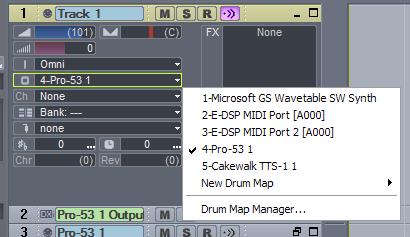
In this example, from Sonar 4, I have 2 hardware external MIDI ports (the E-DSP entries, which were created when I installed my EMU 1820m audio interface) and 3 internal virtual ports, the MS GS Wavetable SW synth, Pro 53, and Cakewalk TTS. (the TTS was created when I installed Sonar, and I bought the Pro 53 as an add-on) I can route the track to any channel on any port.
The External MIDI port will show up in your sequencer application after you install the drivers. When you use a software synth, a virtual MIDI port is created and will show up in your sequencer application as soon as the soft synth is "instantiated" (that's just a buzzword for "initialized." or started.)
Configuring your MIDI System's Ins and Outs
|
Figure 1: Basic MIDI setup using a 1 port USB MIDI interface with standard MIDI jacks
Keyboard MIDI OUT--------->MIDI Interface IN (required!) MIDI Interface USB OUT---->Computer USB IN (required!) MIDI Interface OUT--------->Keyboard MIDI IN (if you are only using your software synths this connection is not required. If you want the computer to play the sounds on your keyboard, or if you want to connect a 2nd module it is required) Keyboard MIDI THRU ------->Keyboard or Module #2 MIDI IN (optional) Keyboard or Module #2 MIDI THRU -----> Keyboard or Module #3 MIDI IN (optional) |
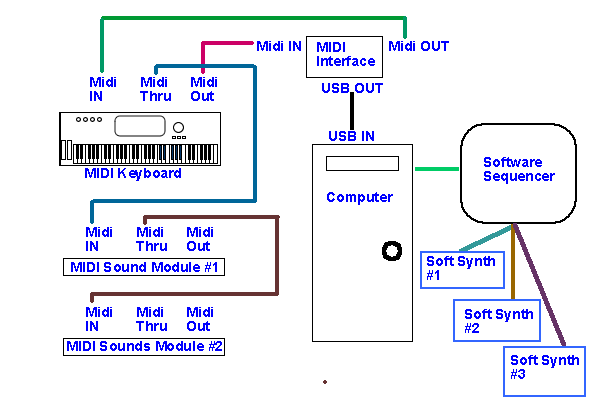
Connecting Keyboards and Modules: The sequencer MIDI out port can connect back to your keyboard's MIDI IN and play up to 16 channels of voices if the keyboard is "multi-timbral" (meaning it can sound many instruments at once). Some synths are not. Old keyboards, like a DX7, only respond to 1 channel unless you hot rod it. You can usually set the keyboard to respond to only one channel if you want or to only channels 1,2,3,7,8, for example, or to all 16. Turning off channels allows you to daisy chain more keyboards or modules by cabling up the 2nd machine from the MIDI THRU on the 1st machine (which is an exact copy of the data coming in the MIDI IN) to the MIDI IN of the second machine. It is possible to have one MIDI port to control 16 different keyboards if you want it too! Usually, if your rig gets this large you will buy a MIDI interface with 4 ports so you can play all 16 channels of your Triton on one port. On a second port you might have with 10 channels from your Proteus 2000, a couple for your Electribe, one for each of your 3 effects box, and the last for your drum machine. Port 3 may use all 16 channels for a control surface and Port 4 might use all 16 more for a digital mixer...ooops sorry, I forgot we are just getting started.
Example of how the SEQUENCER MIDI OUTS can be routed to External keyboards and Software Instruments
Once you have configured your MIDI system (see Figure 1 above) you should note how the channels inside the sequencer can be routed to different sources both inside and outside the computer (see Figure 2 below). On every MIDI track in the sequencer, you specify where it goes. The more gear you have, the more places you can send the data. You could take the bassline you just recorded and route it to a virtual drum machine, edit the notes so they all trigger kick drums, for example. Or make a Marcato String cadence on your Triton, copy the data to another track, assign the track to Module 2 and have the same data play an ambient synth pad. The two together sound like a very dreamy string section. Get the idea? The flexibility of routing MIDI data allows for tremendous creative expression. Below you see a MIDI system with 3 hardware devices and 3 software devices. You can achieve that with just one hardware MIDI port.
Figure 2: Flow from Sequencer MIDI OUTs to Synths
MIDI INs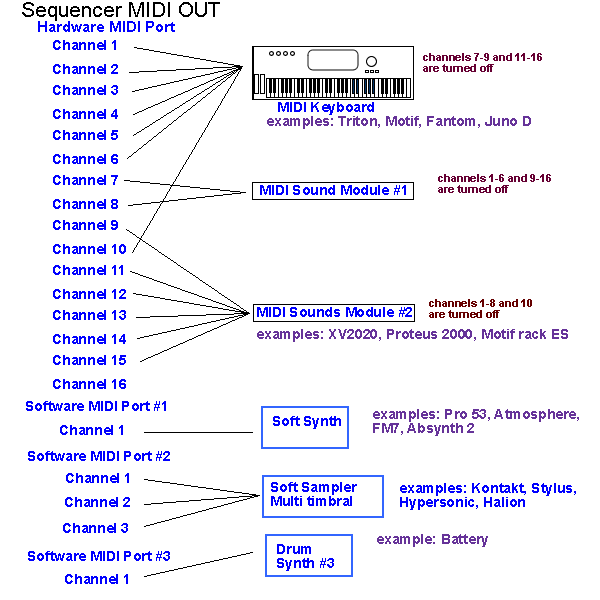 |
 Advanced
MIDI In/Out/Thru Brain-Teasers Advanced
MIDI In/Out/Thru Brain-Teasers
Lets say you have 2 machines daisy-chained
on the same MIDI OUT port. That is, the keyboard MIDI IN is connected
to the computer MIDI out and MIDI sound module #1 MIDI IN is connected
to the Keyboard's MIDI THRU(see Figure 1 again for an example
of daisy chaining). Now lets look at figure 2 again.
If you are sending a track down channel 7 from the sequencer and have
the Keyboard turned OFF on channel 7, What will happen? The keyboard will ignore the data but will still pass it to the next module. Why is that? Because all of the data coming in to the keyboard is also going out the MIDI THRU, MIDI sound module #1 will play the track. So you ask, what happens if channel 7 is set to ON for both devices? Bingo dude! You got it, they both play. Now if each synth was on a different PORT, would both synths make a sound. Nope! Why not? Each port is totally discrete, that is separate. The data on Port A does not go down Port B. To recap, remember, each port has 16 channels of its own. The Port is the parent; the channel is the child. So, lets jump ahead, if you get
a midi interface that has 8 ports, how many channels do you have?
Yes, you math genius, 128. Does that mean you can connect 128
keyboards to ONE 8 port midi interface. YES!
But don't call me to wire it ok? Most people put each synth on
it's own dedicated port so they don't have to turn channels on and off
all the time.
|
Go to the Next Class

Go to the Previous Class
More on MIDI by Tweak